| assets | ||
| Product Detection Q&A Chatflow.json | ||
| README.md | ||

Flowise Chatbot Setup Guide — Linux/Ubuntu
Build a fully local AI-powered chatbot using Flowise, Ollama, and a Conversational Retrieval QA Chain with RAG (Retrieval-Augmented Generation).
Table of Contents
- Prerequisites
- Install Ollama
- Pull Required Models
- Install Flowise
- Start Flowise
- Import an Existing Flow
- Build the Chatbot Flow
- Upsert Documents
- Using Cloud LLM APIs (Optional)
- Deploy Chatbot to Users
Prerequisites
- Ubuntu 20.04 or later
- At least 8GB RAM (16GB recommended)
- Node.js 18+
- Internet access for first-time model downloads
Install Node.js 18+
curl -fsSL https://deb.nodesource.com/setup_18.x | sudo -E bash -
sudo apt-get install -y nodejs
node -v   # should print v18.x.x or higher
Install Ollama
Ollama runs LLMs locally on your machine.
curl -fsSL https://ollama.com/install.sh | sh
Make Ollama Accessible on All Interfaces
By default, Ollama only listens on localhost. To allow Flowise (and other services) to reach it:
sudo systemctl edit ollama.service
Add the following inside the file:
[Service]
Environment="OLLAMA_HOST=0.0.0.0"
Save and restart:
sudo systemctl daemon-reload
sudo systemctl restart ollama
Verify it's running:
curl http://localhost:11434/api/tags
You should see a JSON response listing available models.
Pull Required Models
Chat Model (LLM)
ollama pull qwen2.5:3b        # lightweight, good for most use cases
# OR
ollama pull phi3:mini         # alternative lightweight model
# OR
ollama pull llama3:8b         # better quality, needs more RAM
Embedding Model
ollama pull nomic-embed-text # required for RAG / vector search
(Optional) Vision Model — for image understanding
ollama pull llava # allows users to upload screenshots
Verify all models are available:
ollama list
Install Flowise
npm install -g flowise
Start Flowise
npx flowise start
# OR
npx flowise start --PORT=3030 # set port
Flowise will start on http://localhost:3000
Run as a Background Service (Recommended for Production)
# Install PM2 process manager
npm install -g pm2

# Start Flowise with PM2
pm2 start "npx flowise start" --name flowise

# Auto-start on system reboot
pm2 startup
pm2 save
Set Username and Password (Recommended)
npx flowise start --FLOWISE_USERNAME=admin --FLOWISE_PASSWORD=yourpassword
Or with PM2:
pm2 start "npx flowise start --FLOWISE_USERNAME=admin --FLOWISE_PASSWORD=yourpassword" --name flowise
Import an Existing Flow
If you already have a chatflow exported as a .json file (e.g. Product Detection Q&A Chatflow.json), you can import it directly into Flowise instead of building from scratch.
Download the Flow File
Get the .json file from your repository:
# Using wget
wget -O "Product Detection Q&A Chatflow.json" \
  "http://145.239.66.197:3000/Hamza/Chatbot/raw/branch/main/Product%20Detection%20Q%26A%20Chatflow.json"

# OR using curl
curl -L -o "Product Detection Q&A Chatflow.json" \
  "http://145.239.66.197:3000/Hamza/Chatbot/raw/branch/main/Product%20Detection%20Q%26A%20Chatflow.json"
Note: The URL uses
/raw/branch/to get the raw file content, not the Gitea preview page.
Import into Flowise
- Open Flowise at
http://localhost:3000 - On the Chatflows home page, click the Add New button (top right)
- Instead of building from scratch, click the Load button (upload icon, top right of the canvas)
- Select your
Product Detection Q&A Chatflow.jsonfile - The full flow will appear on the canvas automatically Alternatively, from the Chatflows home page:
- Click the ⋮ (three dots) menu on any existing chatflow card
- Select Duplicate — or use Import if available in your Flowise version
After Importing
The flow is ready but you need to reconfigure credentials since API keys and local paths don't transfer between machines:
| Node | What to Reconfigure |
|---|---|
| Ollama / ChatOllama | Set Base URL to http://localhost:11434 |
| Ollama Embeddings | Set Base URL to http://localhost:11434 |
| Faiss | Set Base Path to /root/.flowise/vectorstore |
| Document Store | Re-upload or re-link your documents |
| Any API node | Re-enter API keys (OpenAI, Anthropic, etc.) |
Create the Vector Store Directory
mkdir -p /root/.flowise/vectorstore
Upsert After Import
After reconfiguring, always run Upsert before chatting:
- Click the Upsert button (top right of canvas)
- Wait for success confirmation
- Verify the index was created:
ls /root/.flowise/vectorstore/
# Expected: faiss.index  faiss.json
Export Your Flow (for sharing or backup)
To export your current flow as a .json file:
- Open the chatflow in Flowise
- Click the ⋮ (three dots) menu → Export
- Save the
.jsonfile — commit it to your repository for teammates to import
Build the Chatbot Flow
Open Flowise at http://localhost:3000 → click Add New to create a new chatflow.
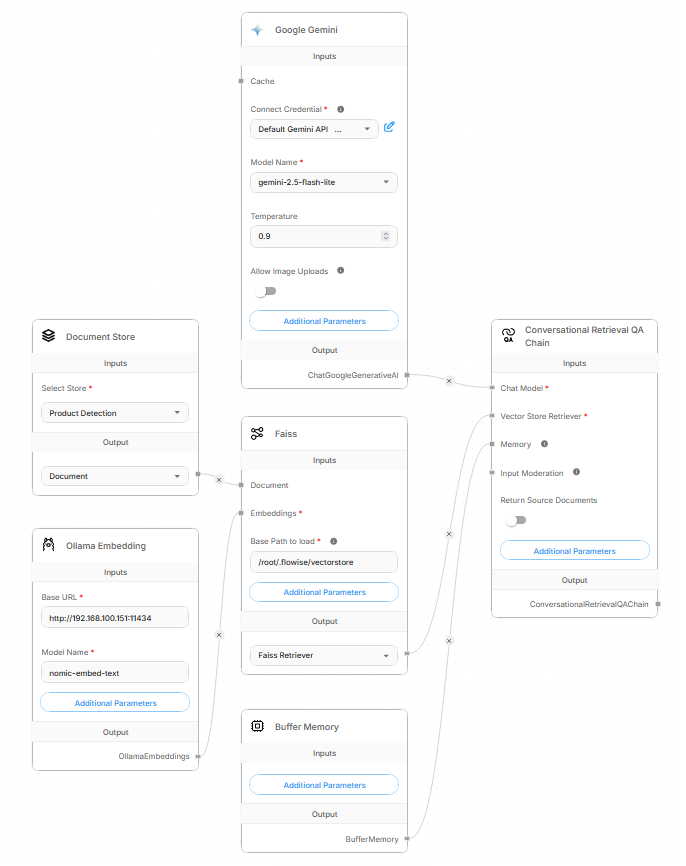
The final flow looks like this:
Step 1: Recursive Character Text Splitter
Search for "Recursive Character Text Splitter" in the nodes panel and drag it onto the canvas.
| Setting | Recommended Value |
|---|---|
| Chunk Size | 1000 |
| Chunk Overlap | 200 |
Step 2: Document Store (RAG)
Search for "Document Store" and drag it onto the canvas.
- Click Select Store → Create New Store
- Name it (e.g.,
Product Documentation) - Assign the Recursive Character Text Splitter to the Document Store
- Add your documents:
- Click the store → Add Document Loader
- Choose a loader: Text File, PDF File, Docx File, etc.
- Upload your knowledge base files
- Connect the Document output of the Document Store to the Faiss node
What to put in your documents: Write plain text files or PDFs describing your software — features, FAQs, installation steps, error explanations, etc. The more detailed your docs, the better the chatbot answers.
Step 3: Ollama Embeddings
Search for "Ollama Embeddings" and drag it onto the canvas.
| Setting | Value |
|---|---|
| Base URL | http://localhost:11434 (or your server IP) |
| Model Name | nomic-embed-text:latest |
Connect the OllamaEmbeddings output to the Embeddings input of the Faiss node.
Step 4: Faiss Vector Store
Search for "Faiss" and drag it onto the canvas.
| Setting | Value |
|---|---|
| Base Path to load | /root/.flowise/vectorstore (must be an existing directory) |
Create the directory if it doesn't exist:
mkdir -p /root/.flowise/vectorstore
Connect:
- Document output from Document Store → Document input of Faiss
- OllamaEmbeddings → Embeddings input of Faiss
The Faiss Retriever output connects to the Vector Store Retriever input of the QA Chain.
Step 5: Ollama Chat Model
Search for "ChatOllama" or "Ollama" and drag it onto the canvas.
| Setting | Value |
|---|---|
| Base URL | http://localhost:11434 (or your server IP) |
| Model Name | qwen2.5:3b |
| Temperature | 0.7 (lower = more factual, higher = more creative) |
Important: Use the exact model name with a colon, e.g.
qwen2.5:3bnotqwen2.5-3b.
Connect the ChatOllama output to the Chat Model input of the QA Chain.
Step 6: Buffer Memory
Search for "Buffer Memory" and drag it onto the canvas.
| Setting | Value |
|---|---|
| Session ID | (leave empty — auto-uses the session ID passed by the user) |
| Memory Key | chat_history |
Connect the BufferMemory output to the Memory input of the QA Chain.
Buffer Memory keeps conversation history so users can ask follow-up questions naturally. Note: Buffer Memory resets if Flowise restarts. For persistent memory across restarts, use Redis-Backed Memory or MongoDB Memory instead.
Upsert Documents
Before the chatbot can answer questions, you must index your documents into the vector store.
- Click the Upsert button (top right of the canvas)
- Wait for it to complete — you should see a success message
- Verify the index files were created:
ls /root/.flowise/vectorstore/
# Expected output: faiss.index  faiss.json
Re-upsert every time you update or add documents to the Document Store.
Using Cloud LLM APIs (Optional)
If you prefer using cloud providers instead of (or in addition to) Ollama:
OpenAI
- Get your API key at https://platform.openai.com/api-keys
- In Flowise: Settings → API Keys → Add key
- Replace the ChatOllama node with a ChatOpenAI node
- Enter your API key and choose a model (e.g.,
gpt-4o)
Anthropic (Claude)
- Get your API key at https://console.anthropic.com
- Replace the ChatOllama node with a ChatAnthropic node
- Enter your API key and choose a model (e.g.,
claude-sonnet-4-5)
Google Gemini
- Get your API key at https://aistudio.google.com
- Use the ChatGoogleGenerativeAI node
- Enter your API key and model name (e.g.,
gemini-1.5-pro)
For Embeddings with cloud APIs: Replace Ollama Embeddings with OpenAI Embeddings or Google Generative AI Embeddings nodes, using the same API key setup.
Deploy Chatbot to Users
Direct Link
Share the chatbot link directly — no account needed for users:
http://your-server-ip:3000/chatbot/YOUR-FLOW-ID
Find your flow ID in the URL when editing the flow.
Users just open the link and start chatting immediately. No signup required.
Embed in Website
Paste this into any HTML page to show a chat bubble:
<script type="module">
  import Chatbot from "https://cdn.jsdelivr.net/npm/flowise-embed/dist/web.js"

  // Generate or reuse a session ID per user
  let sessionId = localStorage.getItem("chatSessionId");
  if (!sessionId) {
    sessionId = crypto.randomUUID();
    localStorage.setItem("chatSessionId", sessionId);
  }

  Chatbot.init({
    chatflowid: "YOUR-FLOW-ID",
    apiHost: "http://your-server-ip:3000",
    chatflowConfig: {
      sessionId: sessionId
    },
    theme: {
      button: {
        backgroundColor: "#your-brand-color",
        right: 20,
        bottom: 20,
      },
      chatWindow: {
        title: "Software Support",
        welcomeMessage: "Hello! How can I help you today?",
        height: 600,
        width: 400,
      }
    }
  })
</script>
Get your embed code from Flowise: open the flow → click the <> (Embed) button (top right).
Session Management
Each user needs an isolated session to prevent seeing each other's conversation history.
| Scenario | Behavior |
|---|---|
No sessionId set |
All users share memory — dangerous |
Unique sessionId per user |
Fully isolated conversations |
| Using your own auth system | Pass your user's ID as the sessionId |
// If users are logged into your system, use their user ID
sessionId: currentUser.id  // e.g. "user_12345"

// For anonymous users, use localStorage (persists across page refreshes)
sessionId: localStorage.getItem("chatSessionId") || (() => {
  const id = crypto.randomUUID();
  localStorage.setItem("chatSessionId", id);
  return id;
})()
Rate Limiting
Limit how many messages a user can send to protect your server.
- Open your flow in Flowise
- Click ⚙️ Configuration (top right)
- Go to the Rate Limiting tab
- Configure:
| Setting | Example Value |
|---|---|
| Message Limit | 20 |
| Duration (seconds) | 60 |
| Limit Message | "Too many messages. Please wait a moment." |
This limits each IP address to 20 messages per 60 seconds.
Troubleshooting
❌ fetch failed when chatting
Cause: Flowise cannot reach Ollama.
Fix:
# Verify Ollama is reachable
curl http://localhost:11434/api/tags

# Check Ollama is running
systemctl status ollama

# Check model name is correct (must use colon, not dash)
# ✅ qwen2.5:3b
# ❌ qwen2.5-3b
ollama list
❌ Cannot read properties of undefined (reading 'startsWith')
Cause: The Base Path to load field in the Faiss node is empty.
Fix:
- Click the Faiss node
- Fill in Base Path to load:
/root/.flowise/vectorstore - Create the directory:
mkdir -p /root/.flowise/vectorstore - Re-upsert
❌ could not open faiss.index for reading
Cause: Upsert was never completed successfully — the index file doesn't exist.
Fix:
# Check if the file exists
ls /root/.flowise/vectorstore/

# If empty, fix the Base Path issue above, then Upsert again
❌ Ollama model not found
Cause: Model name is wrong or model was never pulled.
Fix:
# List available models
ollama list

# Pull the missing model
ollama pull qwen2.5:3b
ollama pull nomic-embed-text:latest

# Always use colon format in Flowise: qwen2.5:3b not qwen2.5-3b
❌ Flowise crashes or won't start
Fix:
# Check Node.js version (must be 18+)
node -v

# Clear Flowise cache
rm -rf ~/.flowise/cache

# Check port 3000 is not already in use
sudo lsof -i :3000

# Restart with PM2
pm2 restart flowise
pm2 logs flowise
❌ Out of memory / model too slow
Fix:
# Check available RAM
free -h

# Use a smaller model
ollama pull phi3:mini   # 3.8B — lighter than qwen2.5:3b

# Check what's loaded in Ollama
ollama ps
If RAM is under 8GB, use phi3:mini or qwen2.5:3b (both under 4GB).
❌ Bot answers incorrectly or doesn't use documents
Cause: Documents are not properly indexed, or chunks are too small/large.
Fix:
- Make sure you clicked Upsert after adding documents
- Verify
faiss.indexandfaiss.jsonexist in the Base Path - Try increasing Chunk Size to
1500and re-upsert - Make sure your documents are in plain text, not scanned images
❌ Users share each other's conversation history
Cause: No sessionId is being passed, or all users get the same ID.
Fix: Use the embed code with a unique sessionId per user (see Session Management).
Quick Reference
| Component | Purpose |
|---|---|
| Ollama | Runs LLMs locally |
| nomic-embed-text | Converts text to vectors for search |
| Faiss | Stores and searches vectors |
| Document Store | Manages your knowledge base files |
| Recursive Text Splitter | Breaks documents into searchable chunks |
| Buffer Memory | Remembers conversation history per user |
| Conversational Retrieval QA Chain | Ties everything together |
| Port | Service |
|---|---|
3000 |
Flowise UI and API |
11434 |
Ollama API |
Built with Flowise + Ollama. All models run locally — no data leaves your server.